
Log In and Go to the Deposit Page
Log in to your Mars Online account at www.marsonline.net. After logging in, look for the Recharge My Account or Deposit link — you will find it in your account page.
Click on it and the deposit page will open.
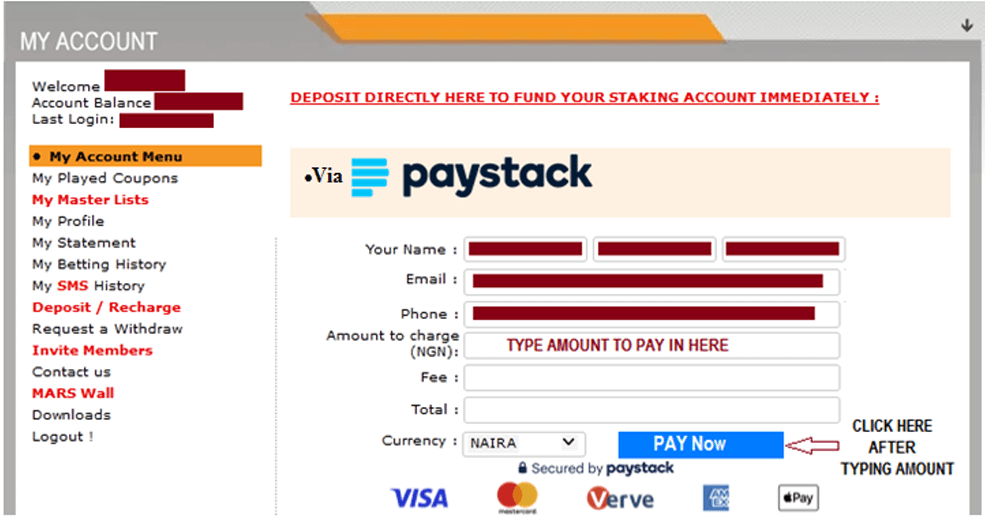
Type in the Amount You Want to Add
On the deposit page, you will see a box where you type in how much money you want to add to your account. For example, if you want to add N2,000, type 2000 in the box.
After typing the amount, click the "Pay Now" button.
Things to Know
- Type only numbers — no comma, no letter, no symbol. Type 2000 not N2,000
- Make sure you type the correct amount before clicking Pay Now
- Whatever amount you type is what you will be asked to transfer
Paystack Will Show You a Bank Account to Transfer To
After you click Pay Now, a Paystack payment window will appear on your screen. It will show you a bank account name and account number to transfer your money to.
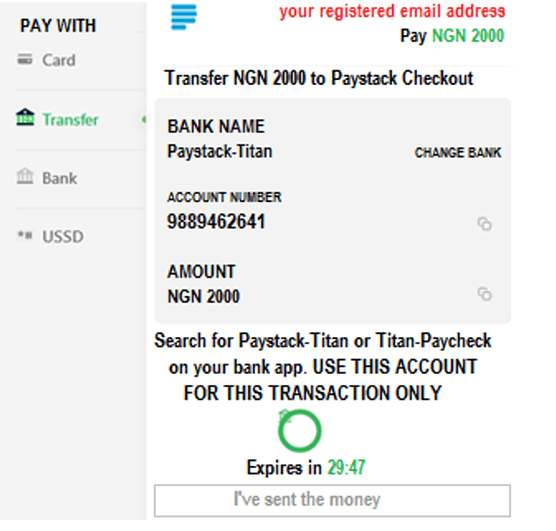
Make the Transfer on Your Phone
Open your bank app or dial your bank's USSD code and transfer the exact amount to the account name and number that Paystack showed you. Do not add extra money and do not send less — send the exact amount.
Common Ways to Transfer in Nigeria
- Bank App — Open your app, go to Transfer, enter the account number and amount
- GTBank USSD — Dial *737*1*Amount*AccountNumber#
- Access Bank USSD — Dial *901*Amount*AccountNumber#
- Zenith Bank USSD — Dial *966*Amount*AccountNumber#
- First Bank USSD — Dial *894*Amount*AccountNumber#
- UBA USSD — Dial *919*3*AccountNumber*Amount#
- Sterling Bank USSD — Dial *822*5*AccountNumber*Amount#
- Any other bank transfer method works too — just use the account number Paystack gave you
Paystack Will Confirm Your Transfer
Once your bank sends the money successfully, Paystack will detect it automatically. A confirmation window will appear on your screen.
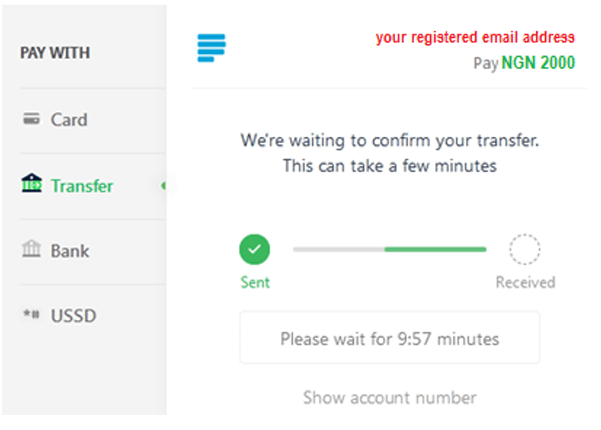
You do not need to click anything — Paystack checks automatically and confirms once your money arrives.
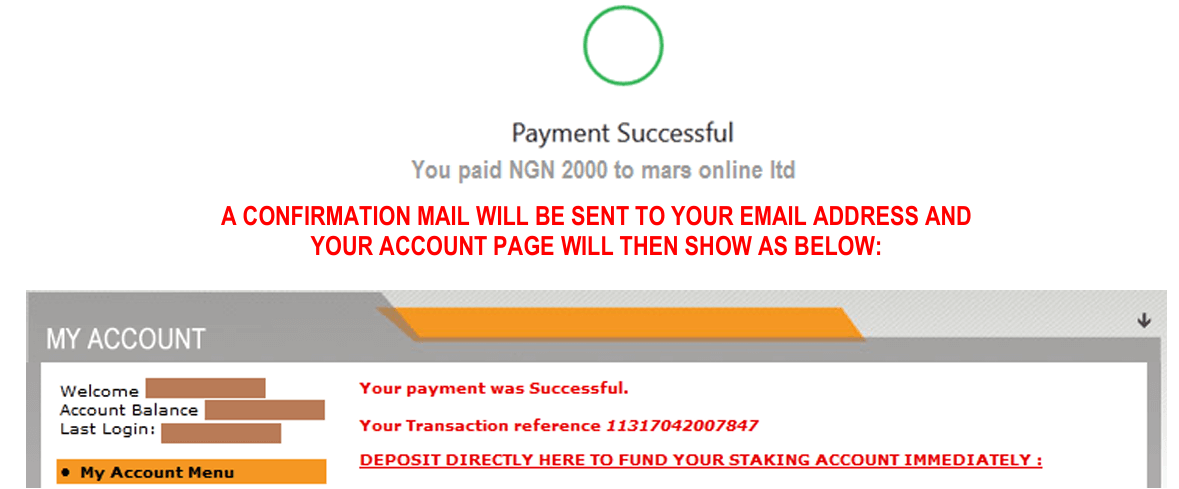
Your Mars Online Balance is Updated Immediately
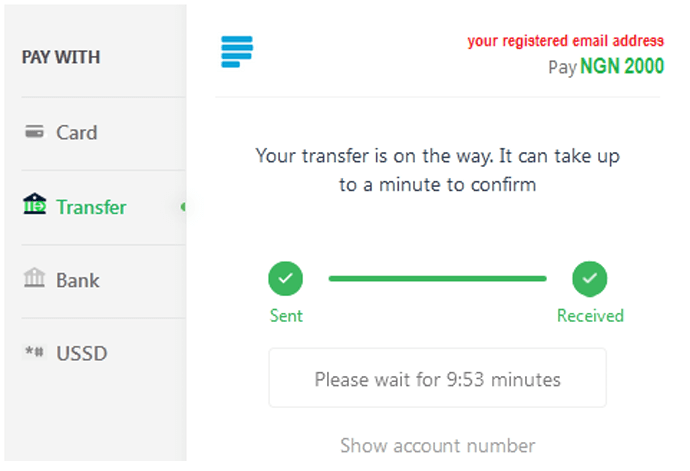
After Paystack confirms the transfer, a success screen will appear. Your money enters your Mars Online account immediately — no waiting, no delay.
What If Something Goes Wrong?
Sometimes things can go wrong during a transfer. Here is what to do in common situations:
Common Problems and What to Do
- I transferred the money but my balance did not update — Wait 5 minutes, then refresh your account page. If it still has not updated, call our customer care line with your transfer receipt
- I accidentally closed the Paystack window before transferring — Go back to the deposit page and start again. A new account number will be generated
- I transferred to the wrong account number — Call our customer care immediately with your bank transfer details so we can help you trace it
- My bank deducted the money but Paystack did not confirm — This sometimes happens. Call us with your bank transaction reference number and we will sort it out for you
- The Paystack window timed out — Some Paystack sessions expire after a few minutes. If this happens, go back and start the deposit again with a fresh session
If you have any problem with your deposit, please call us immediately. Do not panic — we will sort it out for you.
Mars Online Ltd |
www.marsonline.net